

An XML sitemap is a file that lists the URLs on your site and helps search engines discover important pages. Without one, Google can still find your content through internal links and links from other websites. With one, you provide Google with a clearer list of the URLs you want it to discover, which can be particularly useful for new, large, or frequently updated websites.
For a new or growing site, this matters more than most people realise. A sitemap does not guarantee crawling or indexing, and it does not improve rankings on its own. What it does is help search engines discover URLs more efficiently. This guide covers exactly what goes in an XML sitemap, how to create one on WordPress, and how to submit it correctly.
What an XML Sitemap Actually Does
Search engines discover pages by following links and using other discovery methods, including XML sitemaps. A well-linked site with strong internal linking does not strictly need a sitemap for Google to discover its content. A site where pages are harder to reach through internal links, or where new content is published regularly, can benefit from one.
The sitemap tells Google which URLs you consider important and can provide information about when they were last meaningfully modified. Google uses this information as a hint, not a command. It may discover pages not listed in your sitemap and choose not to crawl or index pages that are listed. A sitemap helps with URL discovery, but it does not control crawling or guarantee faster indexing.
What a sitemap cannot do: A sitemap does not force Google to index a page, nor does it improve a page’s rankings directly. A URL listed in a sitemap still needs to meet Google’s technical and quality requirements before it can appear in search results. Sitemaps support discovery and crawl efficiency, not content quality or ranking signals.
What Belongs in an XML Sitemap
Only canonical, indexable URLs that you want to appear in search results should generally belong in an XML sitemap. This is where many sites get it wrong. Including URLs that should not be indexed creates conflicting signals: the sitemap suggests that a URL is important, while the page may indicate that it should not appear in search results.
Include these URLs
- Published blog posts and pages that are set to index
- Category pages, if they are indexable and provide useful, unique content
- The homepage and key landing pages
- Product pages on e-commerce sites that are intended to appear in search results
Exclude these URLs
- Pages with a noindex meta tag. If a page is intentionally set to noindex, it should not appear in the sitemap.
- Duplicate or canonicalized pages where the canonical points to a different URL
- URLs that redirect to another page or return a 404 or other error
- Admin pages, login pages, thank-you pages, and other URLs that are not intended to appear in search results
- Paginated URLs that are non-canonical or not intended to be indexed. Do not automatically exclude every page beyond page one; check the canonical and indexing setup first.
XML Sitemap Format
An XML sitemap follows a specific structure. A basic entry looks like this:
<?xml version=”1.0″ encoding=”UTF-8″?>
<urlset xmlns=”http://www.sitemaps.org/schemas/sitemap/0.9″>
<url>
<loc>https://4seoguide.com/on-page-seo-guide/</loc>
<lastmod>2026-07-15</lastmod>
</url>
</urlset>
The loc tag contains the canonical URL. The lastmod tag tells search engines when the page was last meaningfully updated. Only include an accurate lastmod date when you can reliably identify the page’s last significant modification. Two other tags exist in the sitemap specification: changefreq and priority. Google ignores these tags, so including them provides no SEO benefit for Google Search.
A single sitemap file can contain up to 50,000 URLs or be up to 50 MB uncompressed. If either limit is exceeded, split the URLs across multiple sitemap files and use a sitemap index file to reference them.
For example:
<?xml version=”1.0″ encoding=”UTF-8″?>
<sitemapindex xmlns=”http://www.sitemaps.org/schemas/sitemap/0.9″>
<sitemap>
<loc>https://4seoguide.com/sitemap-posts.xml</loc>
</sitemap>
<sitemap>
<loc>https://4seoguide.com/sitemap-pages.xml</loc>
</sitemap>
</sitemapindex>
Most WordPress SEO plugins generate this structure automatically when a site has multiple sitemap files. An XML sitemap is designed for search engines, whereas an HTML sitemap is generally designed to help visitors navigate a website.
How to Create Your Sitemap with RankMath
On a WordPress site running Rank Math, the sitemap is generated automatically when the feature is enabled. The setup usually takes only a few minutes.
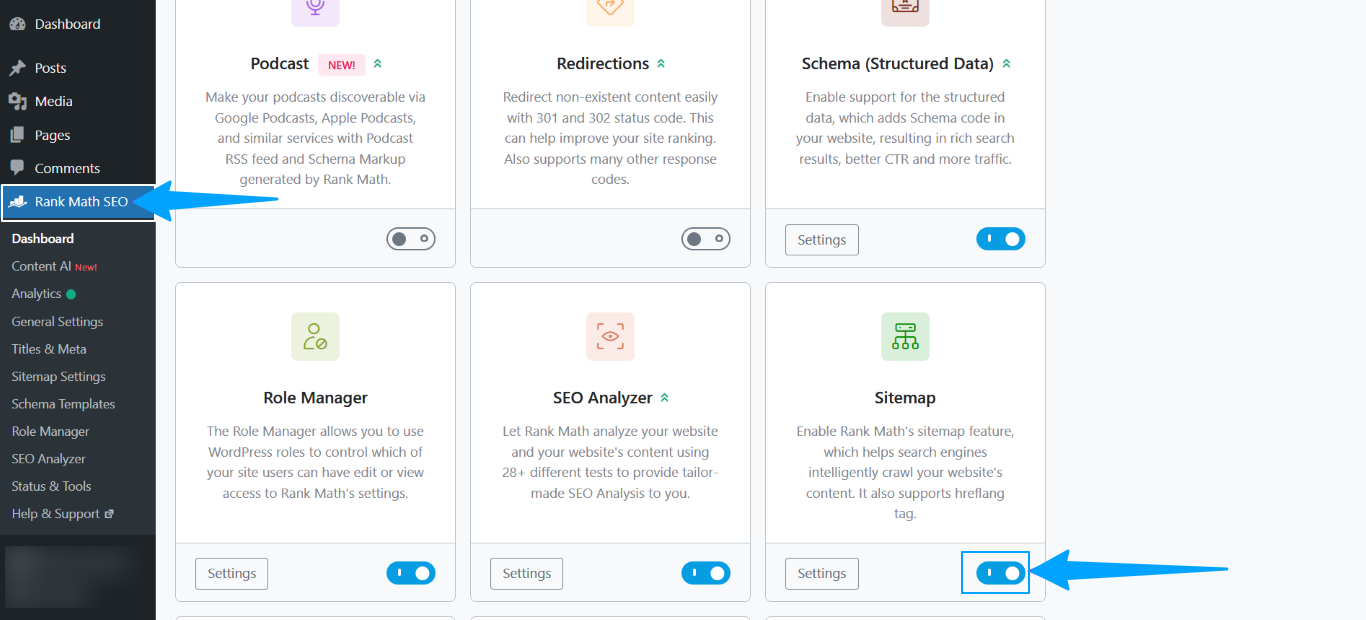
Step 1: Enable the Sitemap module
Go to Rank Math in your WordPress dashboard and locate the Sitemap settings or module, depending on your version and configuration. Confirm that the sitemap feature is enabled. Once enabled, your sitemap is generated automatically and is commonly available at:
https://4seoguide.com/sitemap_index.xml
Verify the actual URL on your website, as the sitemap location can differ depending on your configuration.
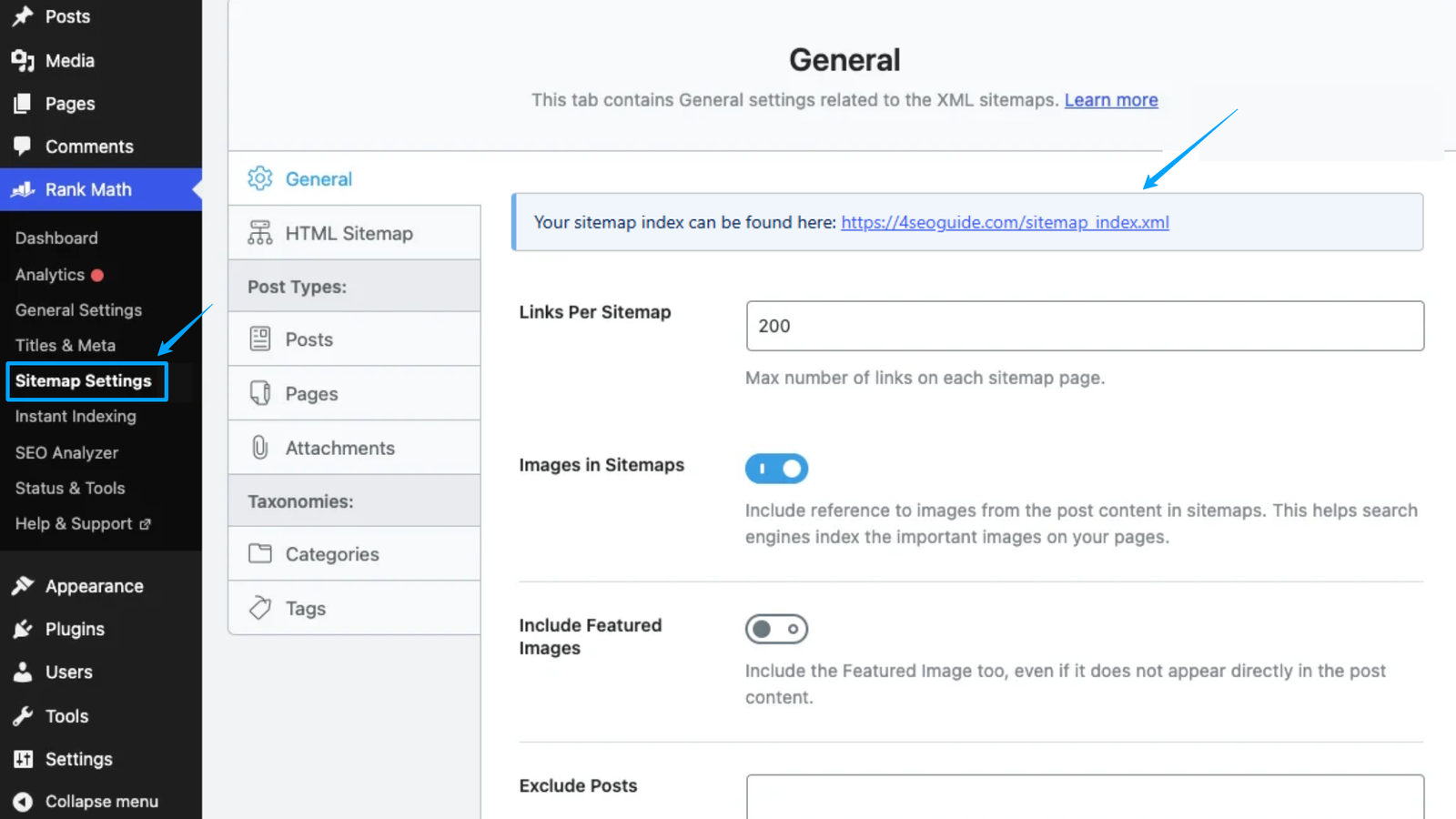
Step 2: Configure sitemap settings
Go to Rank Math, then Sitemap Settings. Here you can control which post types and taxonomies appear in the sitemap. For a content site like 4SEOGuide:Posts: ON — include
- published blog articles that should be indexed.
- Pages: ON — include published pages intended for search results.
- Categories: Your choice — include category pages if they are indexable and provide useful content.
- Tags: OFF for most sites where tag archive pages are thin or provide little unique value.
- Author pages: OFF unless author archive pages offer useful, substantial content and are intended to be indexed.
Step 3: Check the include/exclude settings
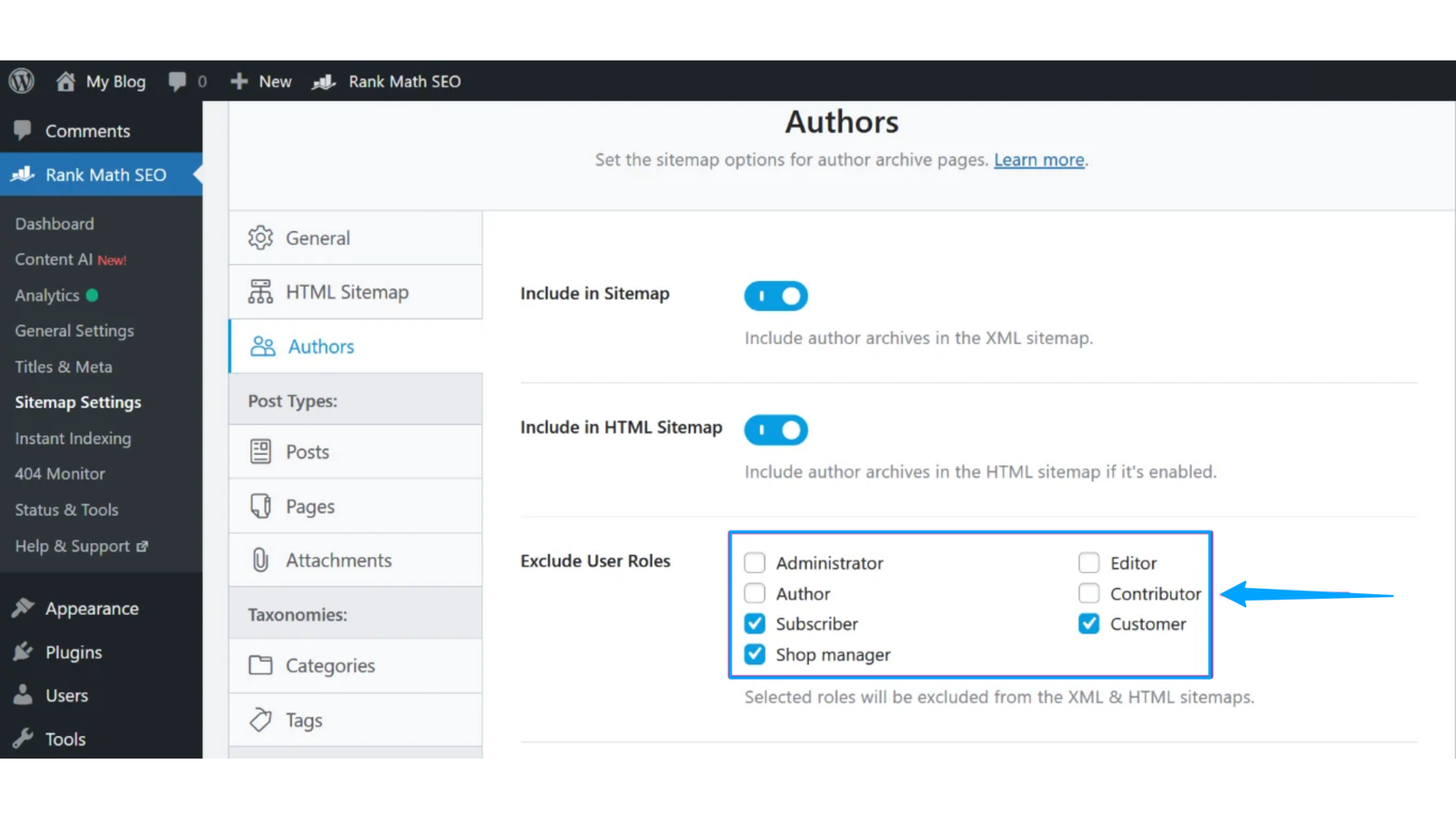
Rank Math lets you exclude specific posts or pages from the sitemap. Check that pages set to noindex, duplicate URLs, and other URLs that should not appear in search results are excluded. Ideally, your sitemap should contain only the canonical URLs you want search engines to discover and potentially index.
 Step 4: Verify the sitemap is live
Open your sitemap URL in a browser. You should see an XML sitemap index listing your child sitemaps or a sitemap listing individual URLs. If you see a 404 error, check the sitemap settings and plugin configuration first. You can also go to WordPress Settings, then Permalinks, and click Save Changes without changing anything. This refreshes the rewrite rules and may resolve sitemap 404 errors.
How to Submit Your Sitemap
Google Search Console
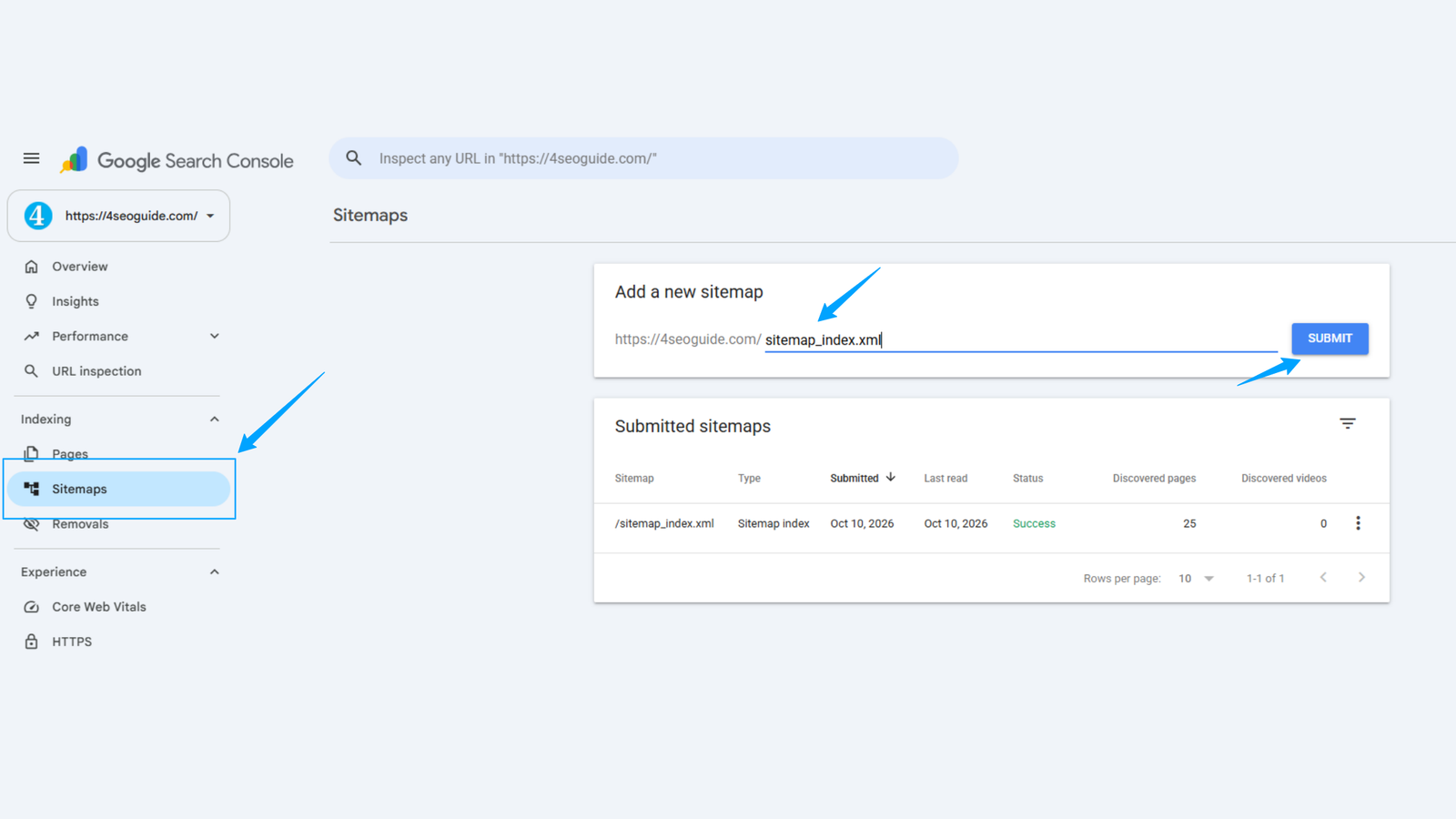
- Open Google Search Console and select your website property.
- Click Sitemaps in the left sidebar.
- Enter your sitemap path, such as sitemap_index.xml, in the sitemap submission field.
- Click Submit.
You do not normally need to resubmit your sitemap every time you publish a new post. Rank Math updates the sitemap automatically when relevant content changes. Depending on your configuration, additional submission automation may be available, but you should not assume that every setup automatically pings Google whenever content is published.
The Sitemaps report in Search Console shows the submission status, the last read date, discovered URLs, and any errors reported for the sitemap. Remember that submitting a sitemap does not guarantee that every listed URL will be crawled or indexed.
Bing Webmaster Tools
If you imported your Google Search Console property into Bing Webmaster Tools, your sitemap may already be recognised. If not, go to Sitemaps in the Bing Webmaster Tools dashboard and submit the same sitemap URL.
Bing also supports IndexNow, which can help notify participating search engines about URL changes. Check your Rank Math configuration and the relevant integration settings before assuming that IndexNow notifications are being sent automatically.
robots.txt reference
You can optionally add a Sitemap line to your robots.txt file. This helps search engines that read robots.txt discover the location of your sitemap without relying solely on a Search Console submission:
Sitemap: https://4seoguide.com/sitemap_index.xml
Check whether your sitemap directive already exists before adding another one. Referencing a sitemap in robots.txt is useful, but it is not a substitute for checking the sitemap itself or monitoring its status in Search Console.
Common XML Sitemap Mistakes and How to Fix Them
| Sitemap Mistake | How to Fix It |
| Including noindex URLs | Remove URLs marked with noindex from your sitemap if they are not intended to appear in search results. |
| Including 404 or 410 URLs | Remove URLs that no longer exist. Redirect them only when a relevant replacement page is available. |
| Including redirected URLs | Replace redirecting URLs with their final destination URLs, preferably the canonical versions. |
| Using incorrect lastmod dates | Update the lastmod value only when significant content, structured data, or other meaningful page elements change. |
| Missing a sitemap reference in robots.txt | Optionally add a Sitemap: directive to your robots.txt file to help search engines discover your sitemap. |
| Forgetting sitemap updates after a website migration | Update sitemap URLs, verify redirects and canonical tags, and submit the new sitemap through Google Search Console. |
| Exceeding sitemap size limits | Keep each sitemap within 50,000 URLs and 50 MB uncompressed. Split larger sitemaps and list them in a sitemap index file. |
| Including non-canonical URLs | Include the preferred canonical URL for each page to avoid sending conflicting signals to search engines. |
| Using relative URLs | Use complete, absolute URLs, including the protocol and domain, such as https://example.com/page/. |
Monitoring Your Sitemap in Search Console
The Sitemaps report in Google Search Console shows how many URLs were discovered from your submitted sitemap. Compare this information with the indexing data in Search Console to identify pages that may need investigation. A large gap between submitted and indexed URLs is a signal worth investigating, but it does not automatically mean there is a sitemap error.
Possible reasons include pages that Google has not crawled yet, duplicate or canonicalization issues, technical problems, or content that Google does not consider suitable for indexing.
Check the Pages report alongside the Sitemaps report. The Pages report provides indexing information and categorises issues affecting discovered URLs. If pages appear as ‘Crawled – currently not indexed’ or ‘Discovered – currently not indexed,’ investigate the affected URLs, internal linking, canonical tags, technical accessibility, and content quality. Changing the sitemap alone will not necessarily resolve these issues.
Frequently Asked Questions
Do I need an XML sitemap if my site has good internal linking?
A well-linked site does not strictly need a sitemap for Google to discover its content. However, a sitemap can make URL discovery more efficient, especially for new websites, large sites, and websites that publish content regularly. Setting one up is generally straightforward, and it provides search engines with a useful list of the URLs you want them to discover.
How often should I update my sitemap?
If you use Rank Math or another WordPress SEO plugin, your sitemap generally updates automatically when you publish or update relevant content. You do not normally need to manage it manually. Check the sitemap and Search Console reports if errors appear or after significant changes such as a migration, URL restructure, or change in indexing settings.
What is the difference between sitemap.xml and sitemap_index.xml?
A sitemap.xml file generally lists URLs directly, whereas a sitemap_index.xml file references multiple child sitemaps. A sitemap index is useful for websites that separate URLs by content type or need multiple sitemap files. Rank Math commonly generates a sitemap index by default, although the exact URL depends on the site’s configuration.
Why does my sitemap show fewer indexed URLs than submitted?
Google does not index every URL included in a sitemap. Pages that are new, duplicate, canonicalized to another URL, technically inaccessible, or considered unsuitable for indexing may not appear in search results. Use the Pages report in Search Console to investigate the status of specific URLs and address the underlying issue rather than changing the sitemap without a clear reason.
Final Thoughts
An XML sitemap is a useful technical SEO tool that helps search engines discover important pages on your website. Set it up through Rank Math, reference it in robots.txt if appropriate, submit it to Search Console and Bing Webmaster Tools, and monitor it periodically. The most common mistakes are straightforward to avoid: keep intentionally noindex pages out of the sitemap, include canonical URLs, use accurate lastmod dates, and investigate sitemap errors when they appear.
The sitemap is not what makes pages rank. It helps search engines discover the pages you want them to consider for crawling and indexing. Strong content, internal linking, technical accessibility, and compliance with search engine requirements remain essential for organic visibility.
1 thought on “XML Sitemaps: How to Create and Submit”
Comments are closed.